
AI restoration runs four passes in this order: clean up damage, recover detail, upscale, and (optionally) add color. Each pass has one job, and the order matters because later passes can't fix what earlier ones missed.
Step 1: Damage cleanup
Scratches, creases, stains, dust, tears, worn corners — old prints collect all of this. The cleanup pass looks for marks that don't belong to the original scene and fills or blends them out.
It works best when the damage sits on background, clothing, or the edges of the photo. A scratch that cuts straight across a face is harder. We can still help, but the result is an educated guess, not a recovery.
Step 2: Detail recovery
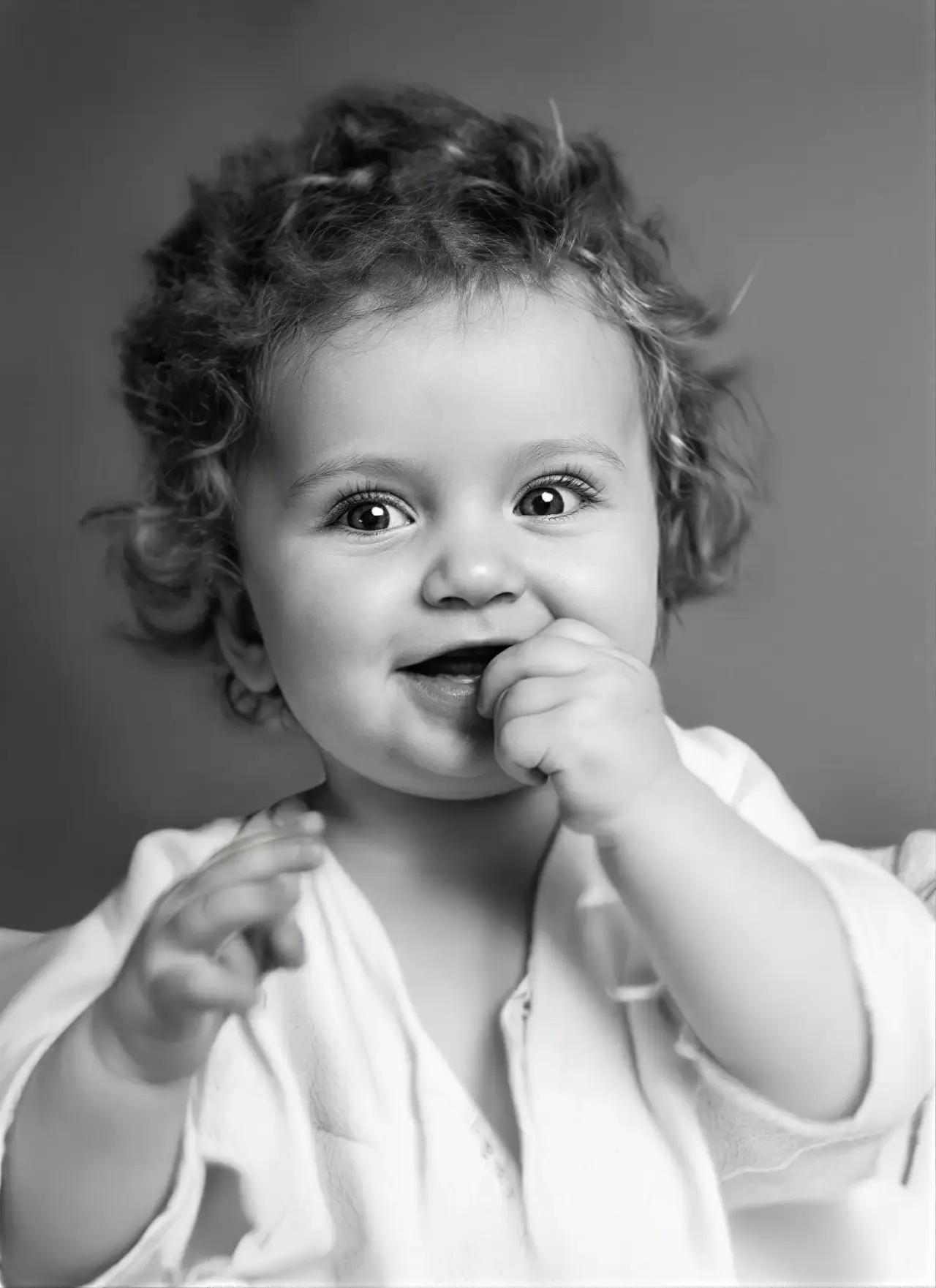
Old photos are often faded, soft, or low contrast. A lot of detail is still there — it just needs to be pulled forward. The recovery pass works on the parts of the image that are present but hard to see.
For portraits, that's faces, eyes, hair, clothing texture, the outline of the person. For family group photos, also the background objects that anchor the memory — the kitchen table, the doorway, the car.
The point is to clarify, not to idealize. The person in the restored photo should still look like the same person.
Step 3: Upscaling
A 4×6 print scanned at 300 DPI on a 1990s home scanner is roughly 1200×1800 pixels. Fine for a phone screen. Too small for a print. Definitely too small to crop for a family tree.
Upscaling produces a larger version. It can't invent historical detail that was never captured, but it can produce a cleaner, larger interpretation that holds up at print size and on modern displays.
Step 4: Colorization (optional)
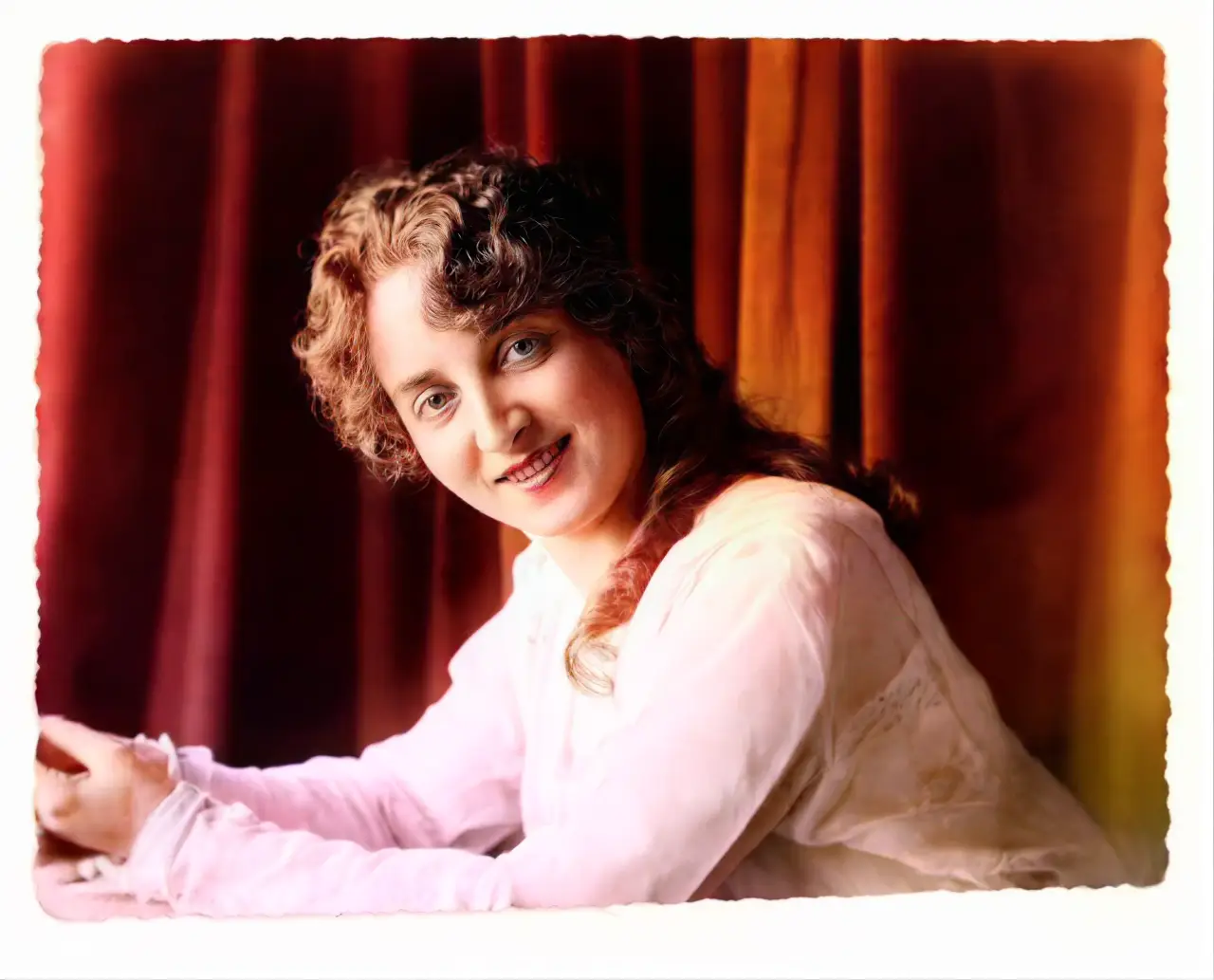
Adding color to a black-and-white photo is the step people ask about most, and the one we try to be honest about. Colorization is interpretation. The model has learned what skin, fabric, and sky usually look like, but it cannot tell you that the uniform in the photo was olive drab and not navy.
Natural-looking, often. Historically accurate, no.
So we keep both: the original black-and-white scan stays as the historical source, and the colorized version becomes the copy you actually look at.
Source photos: what actually helps
A flatbed scan is best. A sharp phone photo can work — hold the phone parallel to the print, fill the frame, use even light, avoid glare.
The things that hurt the result most: blur, JPEG compression, glare spots over faces, and crops that cut off edges or handwriting. The cleaner the input, the less the AI has to guess.
Where AI runs out of road
If a face is fully covered, torn away, or blurred into a smear, the result becomes an approximation. There's no information left to recover, and the model is filling in plausibly, not accurately.
The more recognizable structure the original still has, the better the restoration will be. If you can tell it's a face, we can usually help. If you can't, the result is uncertain.
A simple workflow
Restore one photo first. Compare the result against the original. If the restored version keeps the people recognizable and makes the memory easier to see, run the rest of the archive.
The point of restoration is to respect the photo, not to replace it.
Open the restoration toolBlack and white photo? Colorize it here. For the full scan-to-save workflow, see how to restore damaged old photos. Not sure a photo is even worth restoring? These five signs can tell you.